
Nufibre Pro Router
HX30 Router User Guide
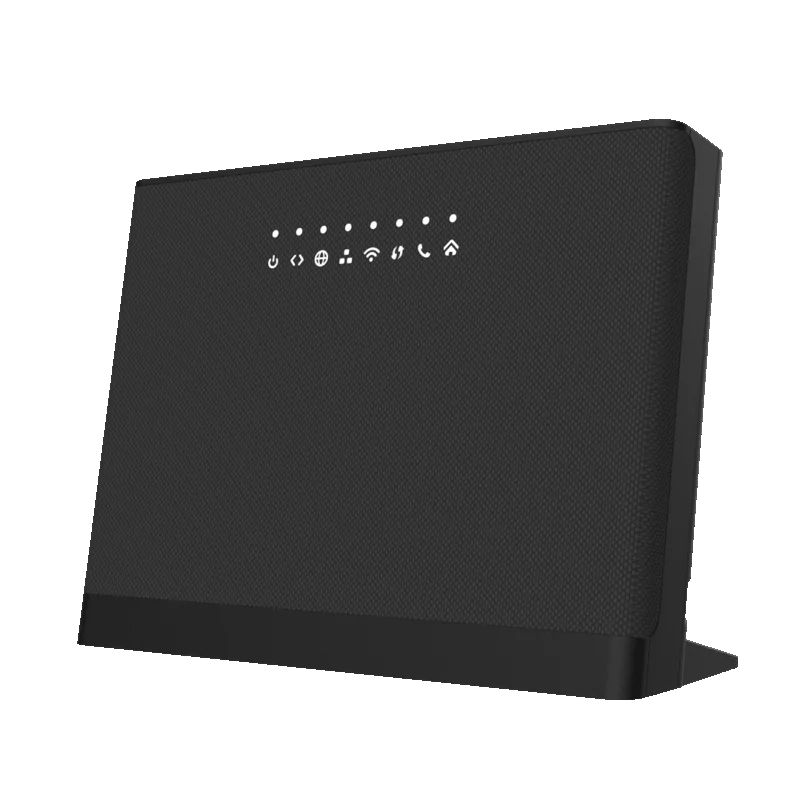
Overview
The HX30 is the Pro Wi-Fi router supplied with many NuFibre broadband packages. It has been designed to deliver fast, reliable wireless coverage for everyday internet use, streaming, gaming, video calls and smart home devices.
Your router is pre-configured before it arrives, so in most cases you'll simply connect it to your fibre connection and you'll be online within a few minutes.
What's in the Box?
Your package will normally include:
Nufibre HX30 Router
Power adaptor
Ethernet cable
Quick Start Guide
If anything is missing or appears damaged, please contact our Technical Support team.
Rear Connections
The rear of the HX30 includes:
Power input
Power On/Off button
2.5gbps WAN port
2.5Gbps LAN ethernet port
4 X Gigabit Ethernet (LAN) ports
WPS button
Reset button
Wi-Fi on/off button
The WAN port connects directly to your Optical Network Terminal (ONT) using the supplied Ethernet cable.
The LAN ports can be used to connect devices such as:
Desktop PCs
Games consoles
Smart TVs
Network switches
Printers
NAS (Network Attached Storage)
Connecting Your Router
Follow these simple steps:
Step 1
Ensure your Optical Network Terminal (ONT) is powered on.
The PON/Optical light should be solid.
Step 2
Connect one end of the supplied Ethernet cable to the ONT.
Connect the other end to the WAN port on your HX30.
Step 3
Connect the power adaptor.
Turn the router on.
Step 4
Wait approximately 2–5 minutes while the router starts.
The front LED should become solid white once the internet connection has been established.
Step 5
Connect your devices using either:
Wi-Fi
Ethernet cable
Your Wi-Fi network name (SSID) and password can be found on the label attached to the back of your router.
Connecting to Wi-Fi
On your phone, tablet or computer:
Open your Wi-Fi settings.
Select your NuFibre Wi-Fi network.
Enter the Wi-Fi password shown on the router label.
Select Connect.
Your device should now have internet access.
Choosing the Best Location
Good router placement makes a significant difference to Wi-Fi performance.
For the best coverage:
Position the router centrally within your home.
Keep it out in the open.
Place it on a shelf or table.
Keep it away from thick walls.
Keep it away from large mirrors and metal objects.
Keep it away from microwave ovens and cordless phones.
Avoid placing the router:
Inside cupboards.
Behind televisions.
Under desks.
On the floor.
Restarting Your Router
If you're experiencing connection issues, restarting the router often resolves temporary problems.
To restart:
Switch the router off.
Wait 30 seconds.
Switch it back on.
Allow up to five minutes for the connection to return.
Factory Reset
A factory reset restores the router to its original settings.
Only perform a reset if advised by NuFibre Technical Support.
To reset:
Ensure the router is powered on.
Locate the small Reset button.
Press and hold for approximately 12 seconds using a paperclip.
Release the button.
Wait for the router to restart.
Please note that any customized settings, such as a changed Wi-Fi name or password, may be lost.
Improving Wi-Fi Performance
If you're experiencing weak Wi-Fi, try the following:
Move the router to a more central location.
Keep it away from electrical appliances.
Raise it off the floor.
Reduce the number of obstacles between the router and your devices.
Use Ethernet for devices that remain in one location, such as desktop PCs or smart TVs.
Consider adding NuFibre Mesh Wi-Fi units for larger properties.
Using Wired Connections
Ethernet connections provide the fastest and most reliable performance.
We recommend using Ethernet where possible for:
Gaming consoles
Desktop computers
Home offices
Video conferencing
Large file downloads
4K streaming devices
Common Questions
Why is my Wi-Fi slower than my broadband package?
Wi-Fi speeds depend on:
Distance from the router
Device capability
Building construction
Interference from neighboring networks
For the highest speeds, use a wired Ethernet connection.
Why has my Wi-Fi disappeared?
First, check:
The router has power.
The front Wi-Fi LED is illuminated.
The router has finished starting up.
If the issue continues, restart the router.
Can I change my Wi-Fi name?
Yes.
If your router management interface has been enabled for customer access, you can change your Wi-Fi network name (SSID) and password.
If you require assistance, contact Technical Support.
Can I use my own router?
Many customers choose to use the supplied Nufibre HX30 for the best compatibility and support.
If you would like to use your own router, please contact NuFibre before making any changes.
Troubleshooting
No Internet
Check:
The ONT is powered on.
The Ethernet cable is securely connected.
The ONT LED is not red.
Restart both the ONT and router.
If the issue remains, contact Technical Support.
Devices Keep Disconnecting
Try:
Restarting the router.
Moving closer to the router.
Disconnecting unused devices.
Checking for interference from other wireless equipment.
Changing your Wi-Fi password
If multiple devices are affected, contact NuFibre Support.
Slow Speeds
For the most accurate speed test:
Disconnect unnecessary devices.
Turn off the Wi-Fi (Button on the back of the router)
Connect a computer directly to the router using an Ethernet cable.
Close any downloads or streaming services.
Run a speed test. (Try Multiple Speed test server locations to get the average)
If your wired speed is significantly lower than expected, contact Technical Support.
Looking After Your Router
To keep your router operating at its best:
Leave it powered on at all times.
Ensure there is adequate ventilation.
Do not cover the router.
Avoid placing heavy objects on top of it.
Do not expose it to moisture or direct sunlight.
Need More Help?
If you require assistance with your Nufibre HX30 router, our Technical Support team will be happy to help.
Please include:
Your name
Your address
A description of the issue
Any troubleshooting steps you've already tried