
CX30 Mesh Device
Nufibre CX30 Mesh Wi-Fi Guide
Overview
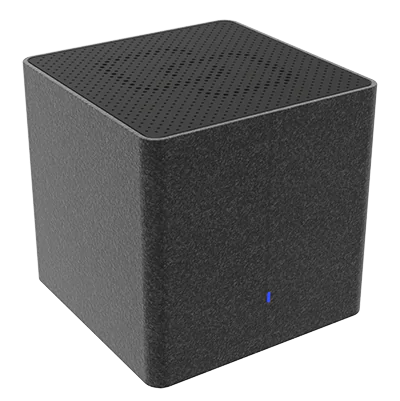
The Nufibre CX30 is a Router and a Wi-Fi 6 Mesh unit supplied by NuFibre to improve wireless coverage in larger homes.
It works together with your HX30 router to create a single, seamless Wi-Fi network throughout your home. As you move around, your devices automatically connect to the strongest signal without needing to reconnect manually.
Whether you're working from home, streaming in 4K or gaming upstairs, the CX30 helps eliminate Wi-Fi dead spots and improves wireless performance throughout your property.
What is Mesh Wi-Fi?
Traditional Wi-Fi relies on a single router.
In larger homes, this can result in:
Weak Wi-Fi upstairs
Dead spots in bedrooms
Poor signal in home offices
Slow speeds in conservatories or extensions
A Mesh Wi-Fi system uses multiple devices that work together as one network.
Your phone, tablet or laptop automatically switches between Mesh units as you move around your home.
There is only one Wi-Fi network name (SSID) and one password.
Benefits of NuMesh
Using the Nufibre CX30 gives you:
Better Wi-Fi coverage throughout your home
Faster speeds in difficult areas
Improved performance for video streaming
Better online gaming experience
Seamless roaming between rooms
Support for dozens of connected devices
Where Should I Place My Mesh Unit?
Correct placement is the most important factor in achieving excellent Wi-Fi coverage.
The ideal location is:
✔ Halfway between your HX30 router and the area with poor Wi-Fi.
For example:
Router → Hallway → Living Room
Place the Mesh unit in the hallway.
Do not place it inside the room that already has no signal, as it also needs a good connection back to the router.
Best Placement Tips
Place your CX30:
✔ On a shelf or table.
✔ In an open area.
✔ Away from thick brick walls.
✔ Away from large mirrors.
✔ Away from microwaves and cordless phones.
Avoid placing it:
✖ Behind a television.
✖ Inside cupboards.
✖ On the floor.
✖ Next to radiators.
✖ Inside metal cabinets.
Connecting Your CX30
Your NuFibre Mesh units are normally pre-configured before delivery.
In most cases:
Plug the CX30 into a power socket.
Wait for it to start.
The unit will automatically connect to your HX30 router.
Your Wi-Fi coverage will expand automatically.
No additional setup is normally required.
Wired Backhaul
For the best possible performance, the CX30 can also be connected to your network using an Ethernet cable.
This is known as wired backhaul.
Benefits include:
Maximum Wi-Fi performance
Lower latency
Improved gaming performance
Better speeds in larger homes
Less wireless interference
If your home has Ethernet cabling installed, we recommend using wired backhaul whenever possible.
To setup a wired backhaul, connect an ethernet cable from the 1Gbps LAN port on your HX30/CX30 router to the RED WAN port of the intended CX30 mesh unit, With the main router powered on, just power on the mesh device and let it auto configure from the main router.
If that fails, just press the reset button on the mesh device for 20 seconds and wait for 3-4 minutes until the process restarts and completes.
Expanding Your Wi-Fi
Additional CX30 units can be added to improve coverage in larger properties.
A typical setup might look like this:
Ground Floor
HX30/CX30 Main Router
↓
First Floor
CX30 Mesh
↓
Second Floor
CX30 Mesh
Each unit extends the network while maintaining a single Wi-Fi name and password. Three units can provide coverage for homes up to approximately 750 m², depending on layout and construction.
Frequently Asked Questions
Do I need a different Wi-Fi password?
No.
All Mesh units use the same Wi-Fi name and password as your main router.
Will my devices reconnect automatically?
Yes.
Your devices automatically connect to the strongest available Mesh unit as you move around your home.
Can I move my Mesh unit?
Yes.
If you're experiencing poor Wi-Fi, try moving the unit a little closer to the main router.
Even moving it by one or two meters can make a noticeable difference.
Can I connect devices using Ethernet?
Yes.
The CX30 includes Gigabit Ethernet ports, allowing you to connect devices such as:
Smart TVs
Desktop PCs
Games consoles
Printers
Network switches
A wired connection provides the most stable and reliable performance.
Can I switch the Mesh unit off?
You can, but doing so will reduce Wi-Fi coverage in the area served by that unit.
For the best experience, leave all Mesh units powered on at all times.
Troubleshooting
My Mesh Unit Won't Connect
Try the following:
Check the unit has power.
Wait up to five minutes for it to start.
Move it closer to the Main router.
Restart both the main router and the CX30.
If the problem continues, contact NuFibre Technical Support.
Wi-Fi Is Still Slow
Check that:
The Mesh unit is not too far from the router.
There are no large obstacles between units.
Your device supports Wi-Fi 6 (older devices may have lower speeds).
You're connected to the NuFibre Wi-Fi network.
For maximum performance, connect stationary devices using Ethernet where possible.
I Have More Than One Mesh Unit
Position each Mesh unit so that it has a good connection to the previous one.
Avoid placing Mesh units too close together, as this may reduce overall performance.
Looking After Your Mesh Unit
To keep your CX30 performing at its best:
Leave it powered on.
Ensure good ventilation.
Do not cover it.
Keep it dry.
Dust it occasionally using a soft, dry cloth.
Need More Help?
If you're having trouble setting up your Mesh Wi-Fi or improving coverage, our Technical Support team is here to help.
Please include:
Your full name
Service address
Number of Mesh units installed
A brief description of the issue