
Troubleshooting the Calix ONT
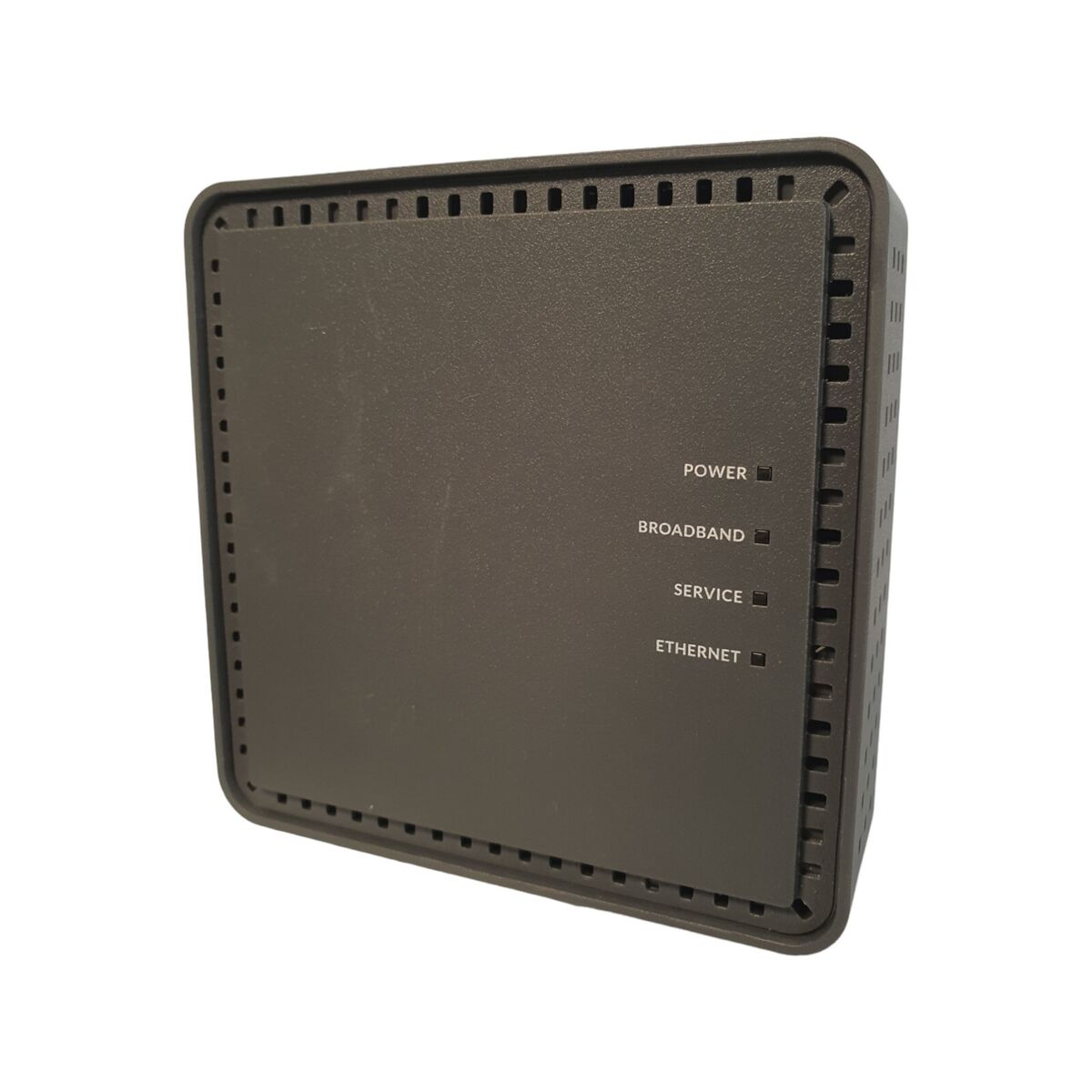
There are a number of Calix ONT models, but they look very similar to this and the troubleshooting guide below should work for them all.
This article covers:
What the lights mean and which lights should be on when the device is working properly
Steps to work through before contacting the Support Team
Light status
When working properly, the items in bold for each light below indicates a good connection/service.
Power (Checking the power from the mains)
Flashing/Solid Green: Device is booting or has booted up
Move on to Broadband light status
Flashing/Solid Amber: Device is being upgraded
The device should be back online within 5-10 minutes
Red: Failed to boot, something's wrong
Reboot the ONT by removing the power cable or pressing the reset switch for less than 5 seconds
If that fails, using a paperclip or similar, hold the reset switch for 10-15 seconds to perform a factory reset of the ONT
If the fault continues, please let us know by clicking HERE
Off: No power
Check that the power cable has no visible signs of damage and is securely in place
If the fibre cable is damaged, let us know HERE
Try the power adapter in another socket
If the device works in another socket, we suggest you get an electrician to check the socket
Check that there is power in the property (try the lights or turn on an appliance that doesn't have a battery back up source)
Broadband (The ONT connection from your local exchange to the network)
Flashing / solid green: It's establishing or has established a connection
Move on to Service light status
Flashing red then green: Unable to establish a stable connection
Check the green fibre optic cable is connected to the ONT properly. Be very careful handling the cable as the fibre is delicate and can be damaged if not handled carefully.
Reboot the ONT by using either of the following methods:
Removing the power cable, and replacing it after 10 seconds
Switching the power source off, and switching back on after 10 seconds
Pressing the reset switch for less than 5 seconds
Reset the ONT
Use a paperclip, or something similar, and hold the reset switch for 10-15 seconds. This will cause a factory reboot.
If neither of the steps above resolve the issue, Contact us HERE
Off: Can't detect the optical cable
Check the green fibre optic cable is connected to the ONT properly. Be very careful handling the cable as the fibre is delicate and can be damaged if not handled carefully. If this doesn't resolve the issue, contact the support team HERE
Service (Connection status to the external network)
Green: if there is a working connection to the ONT
Move on to Ethernet light status
Off: There's a problem with the connection
Reboot the ONT by using either of the following methods:
Removing the power cable, and replacing it after 10 seconds
Switching the power source off, and switching back on after 10 seconds
Press the reset switch for less than 5 seconds
If the steps above don't resolve the issue, just let us know HERE
Ethernet (The connection status between the ONT and the router)
Green: The ONT is connected to your router
Off: The ONT and router aren't connected
Check the Ethernet cable is connected to both the ONT's Ethernet port and the router's Internet port
Ensure that the router is powered on
Ask the customer if they can swap the Ethernet cable for a new/different one to rule out a faulty cable.
If the router is powered off and will not power on, get in touch with us HERE